How to upgrade iVideon Cloud Surveillance firmware for Dahua IPC-C35

Step 1
Download and install the gDMSS Lite from Andriod app store or iDMSS Lite iPhone app stores.

Step 2
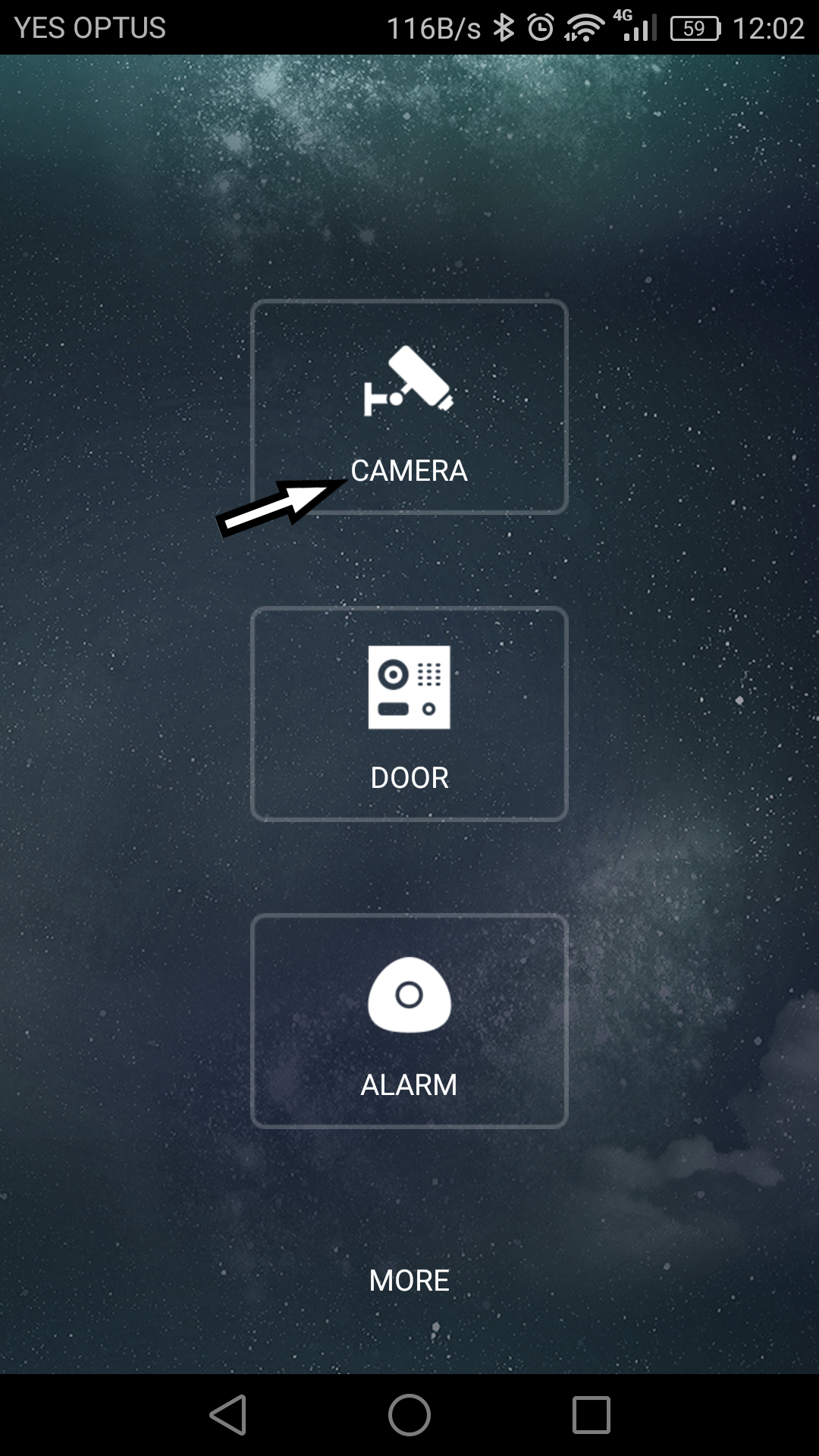
Select the CAMERA icon from the home page
Step 3
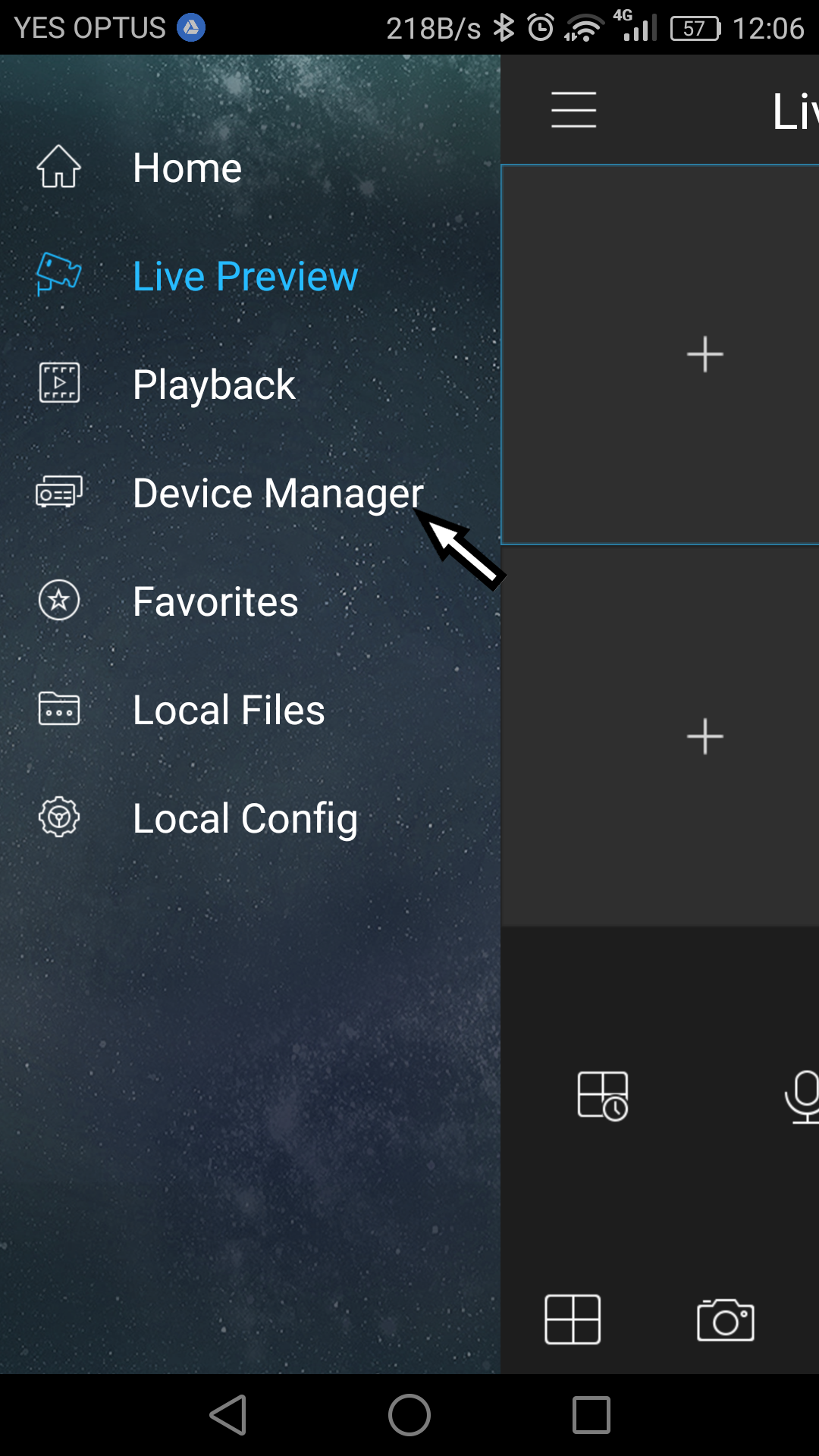
Click on the ‘drawer symbol’ on the top left and select Device Manager
Step 4
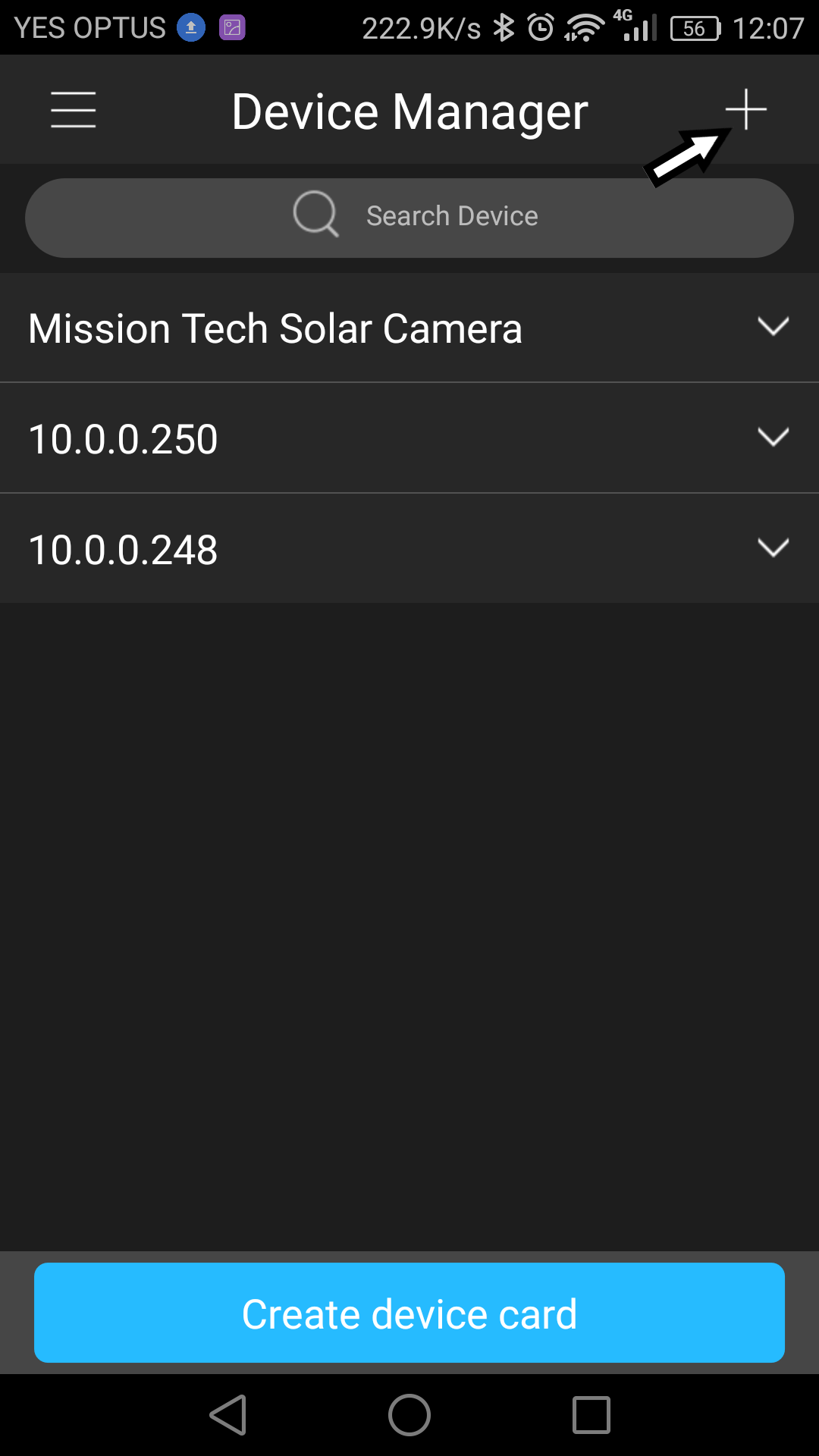
Click on the + symbol to Add Camera
Step 5
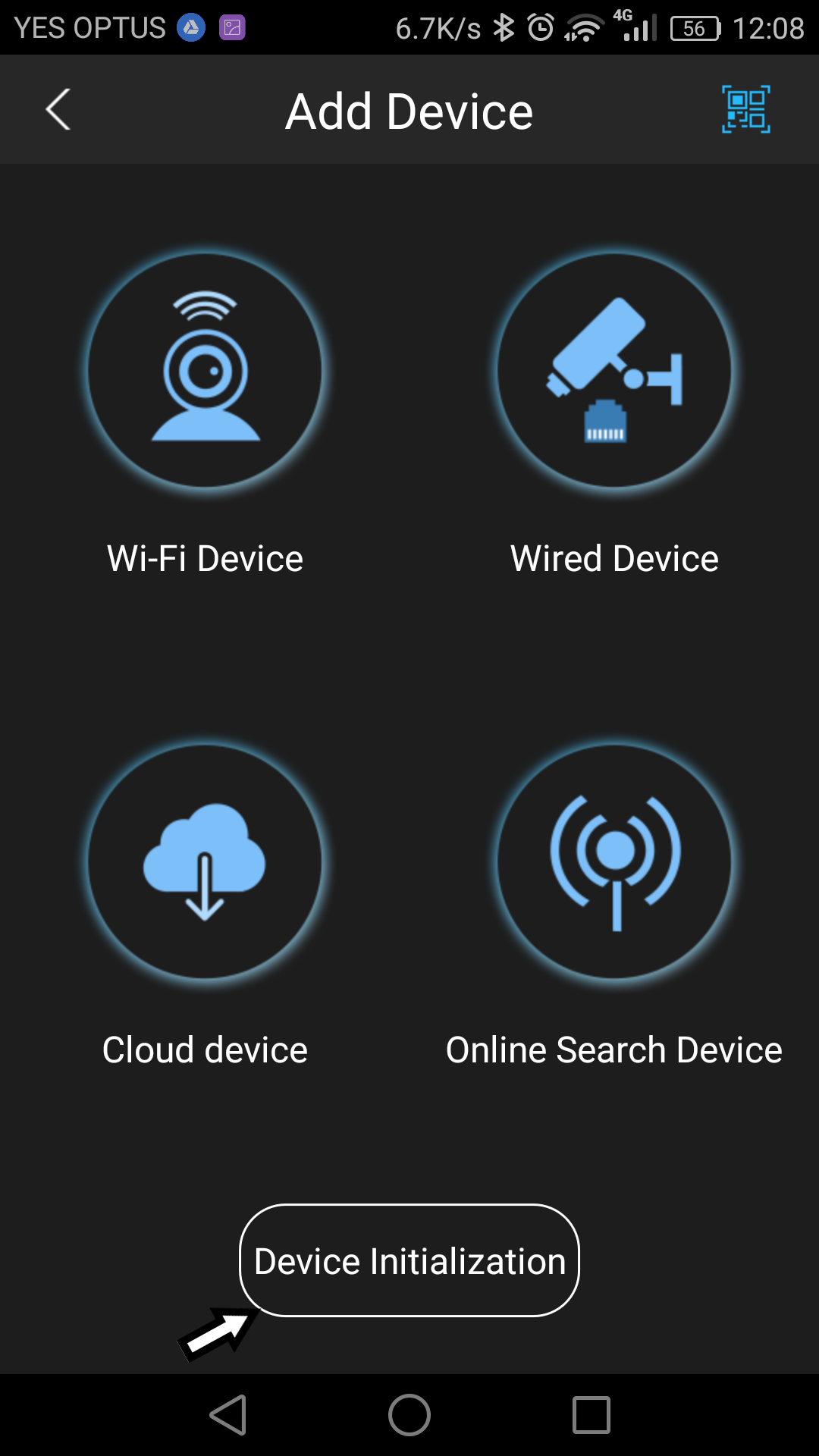
Click on Device Initialization to add your camera to your existing wi-fi access point.
Step 6
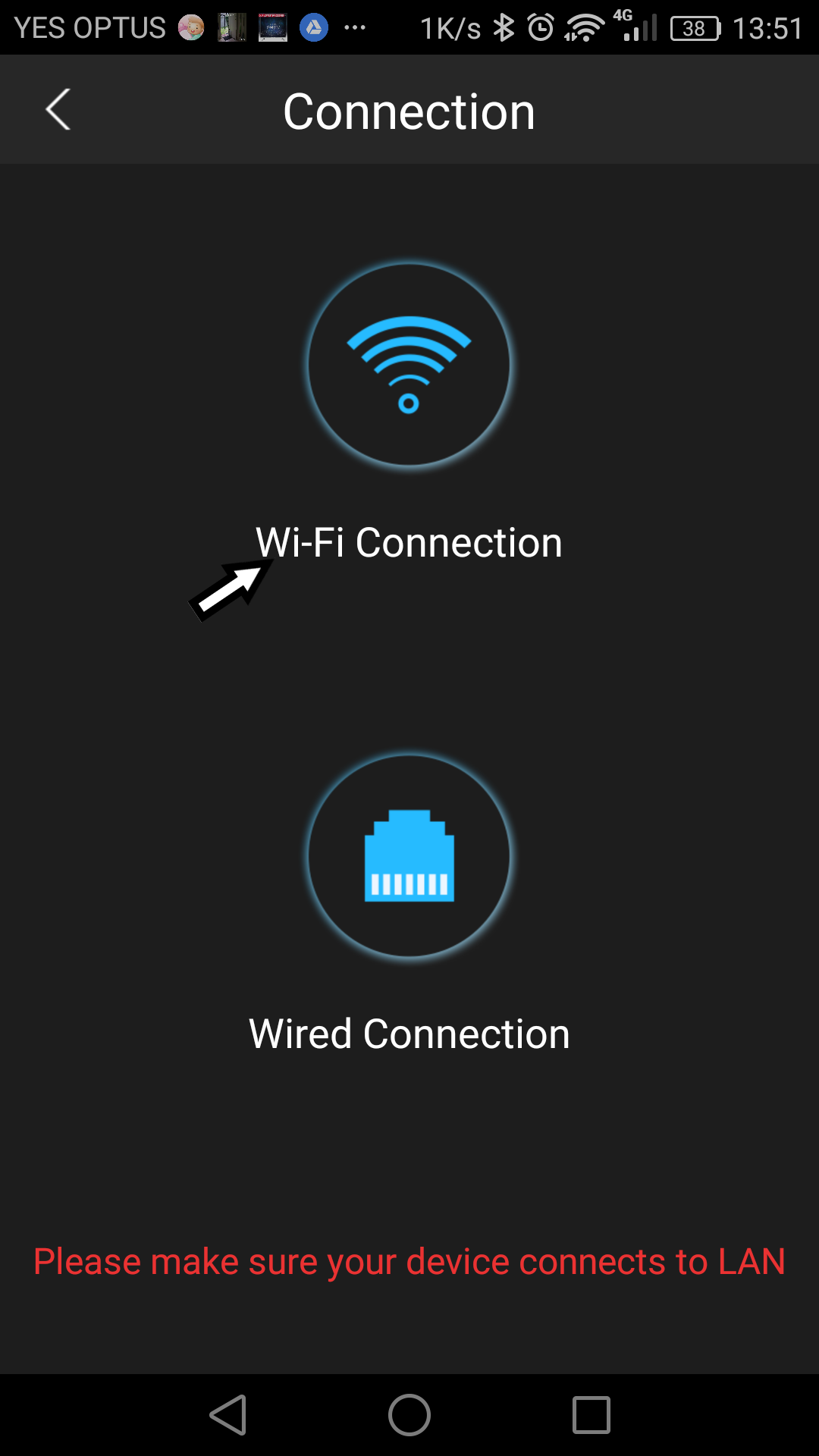
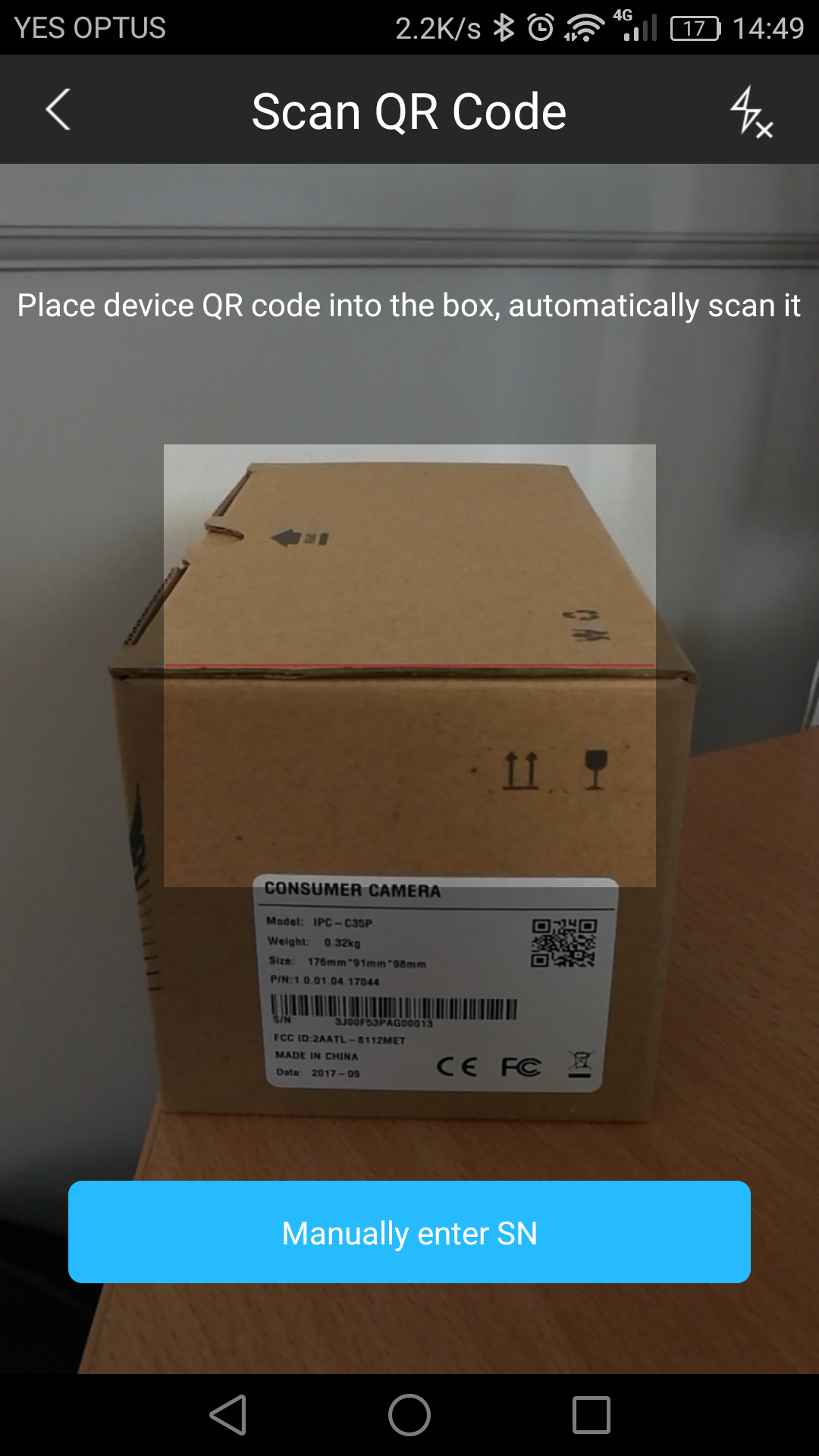
Click on Wi-Fi Connection and scan the QR code of your camera located on the box or the back of your camera.

Step 7
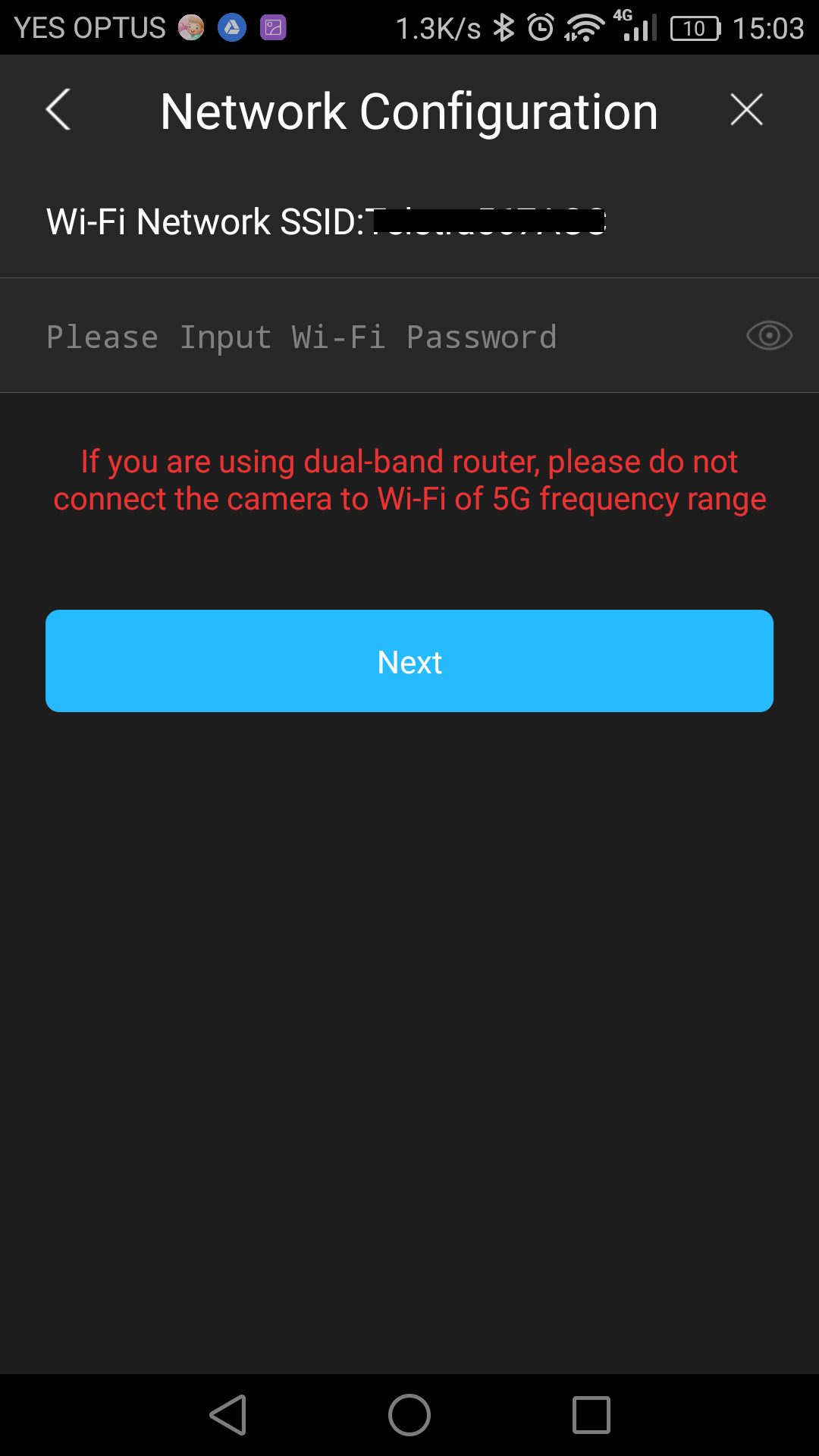
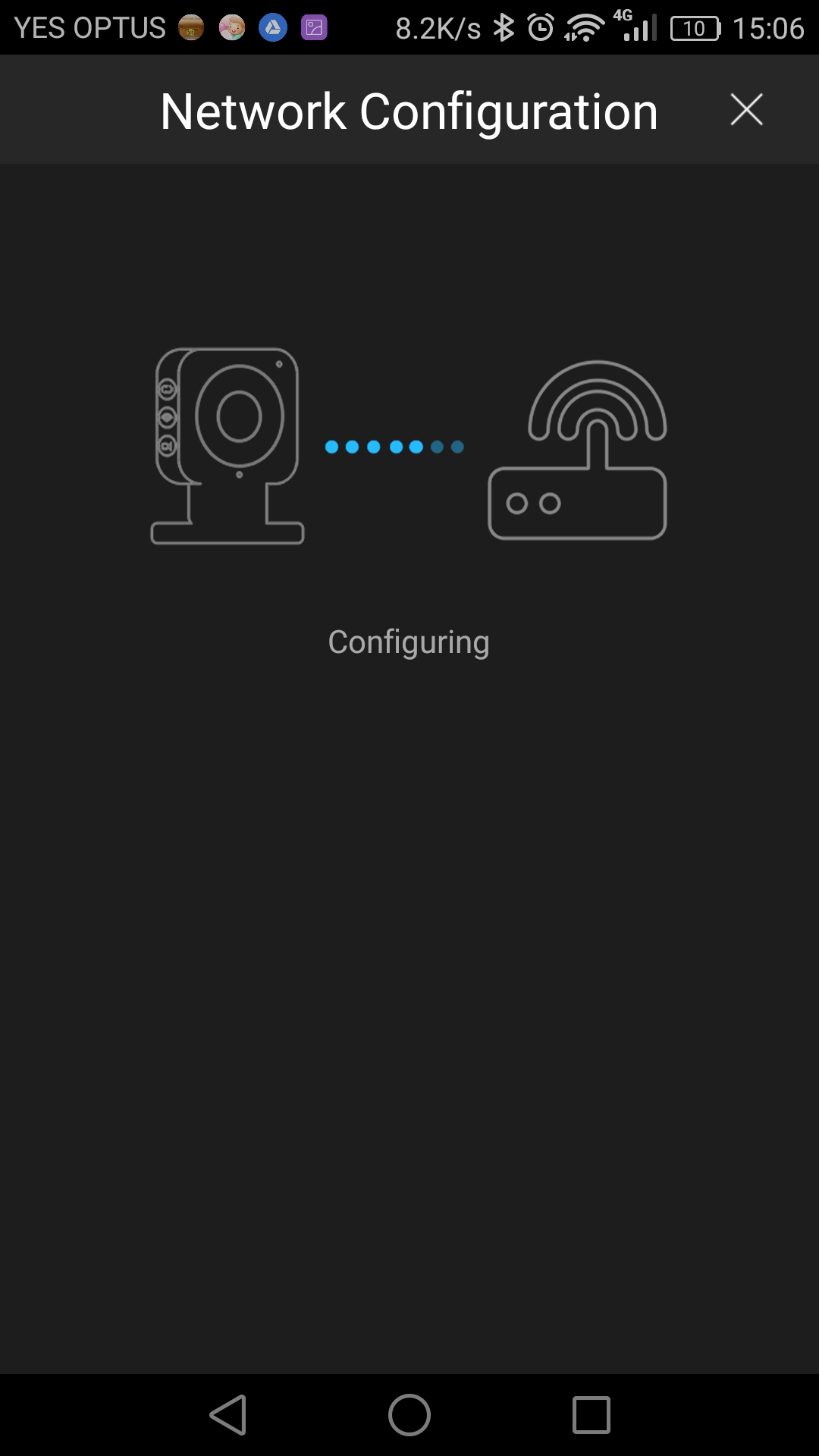
Enter your Wi-Fi password
Step 8
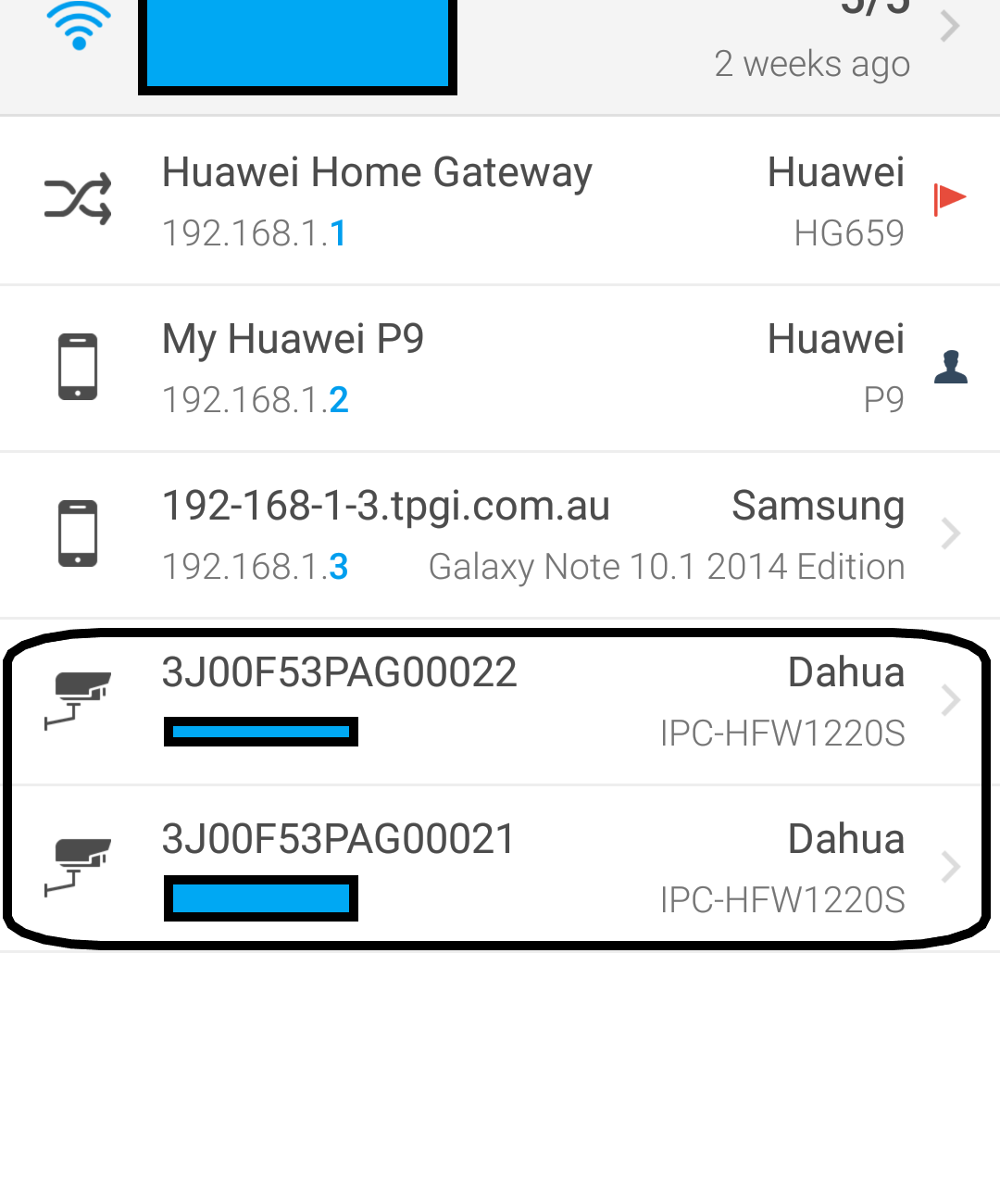
Download and install any network scanner from your Android or Apple app store to scan and determine the IP address of your camera. We recommend FING – Network Tools.
Step 9
Open any web browser (e.g. IE, Firefox or Chrome) and key in the IP address of your camera on the address bar. The default ID: admin and Password: admin

Step 10
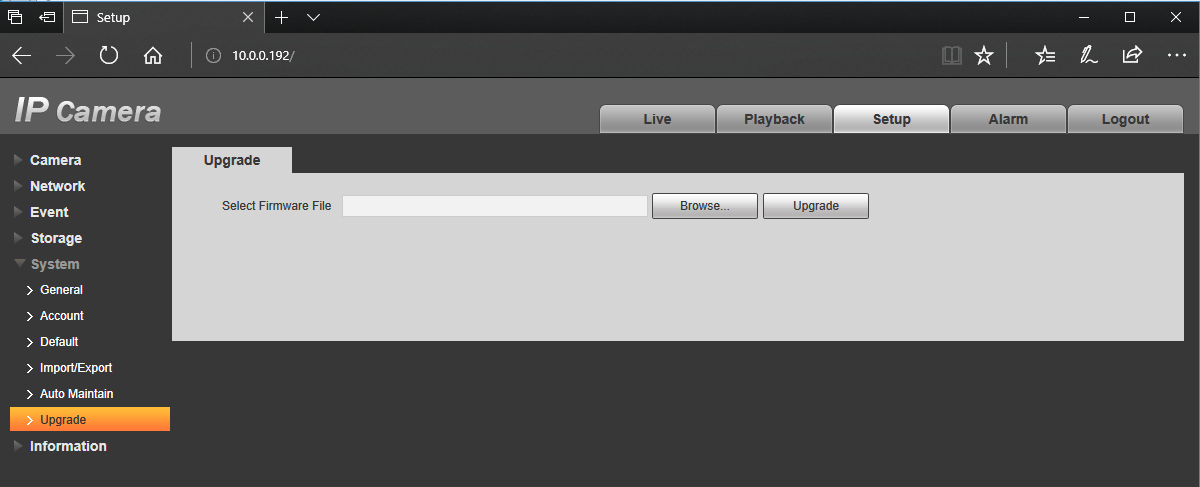
After login, click on the following:
- Setup
- System
- Upgrade Then select the firmware that you downloaded from us. Firmware download: Click here
click here to proceed to set up your camera to your Ivideon account.